Self-checkout (SCO) has become a key feature in retail worldwide, driven by the growing demand for faster, more convenient, and contactless shopping experiences. In Microsoft Dynamics 365, Self-Checkout enhances operational efficiency by reducing checkout times and allowing businesses to allocate staff to higher-value tasks. It also improves the customer experience by offering a fast, seamless, and convenient way to complete purchases, reducing wait times, and boosting overall satisfaction.
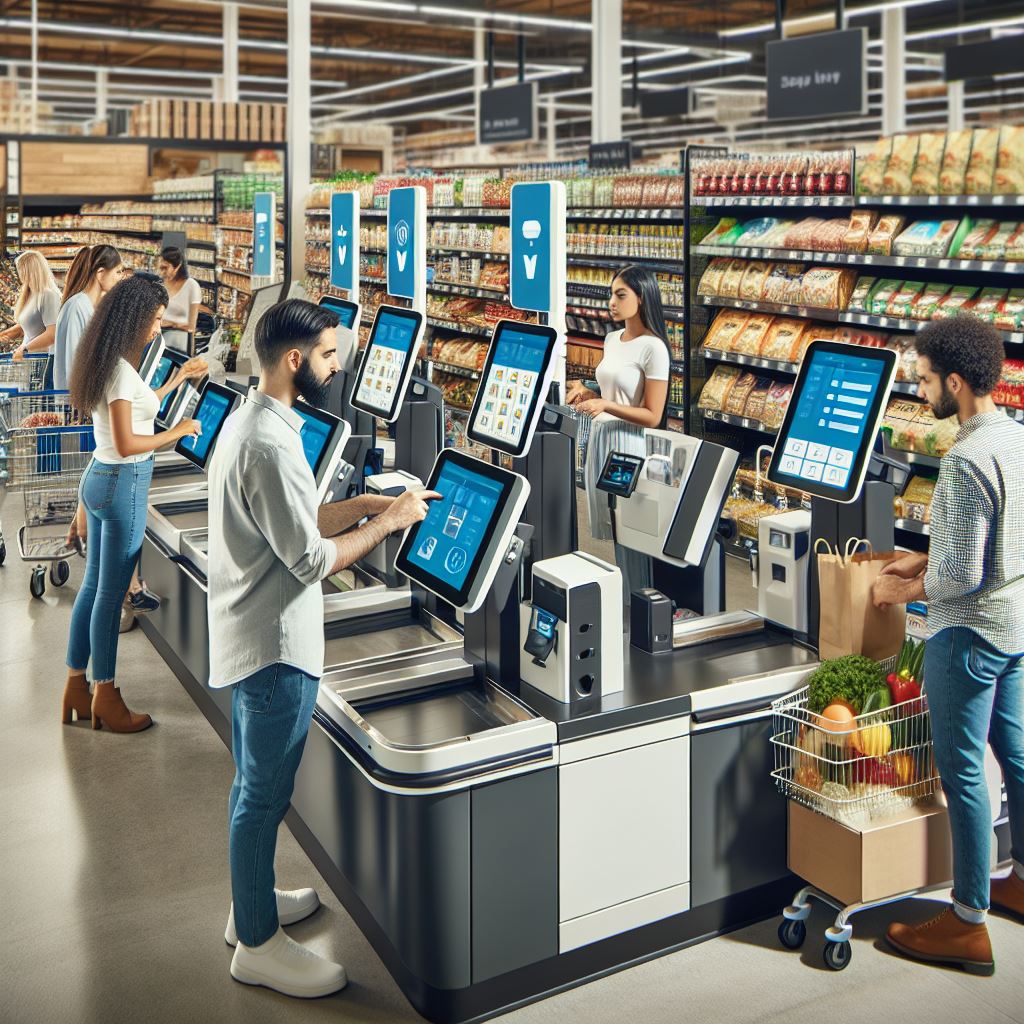
This blog explores a new feature in the Retail and Commerce module of Dynamics 365 that enhances the Self-Checkout experience.
Prerequisites:
- Feature Management
- Ensure you’re on the correct release; Self-checkout was introduced in version 10.0.40.
- Enable the feature from Feature Management.
- Feature Name: Configure POS Self-checkout Register
Note: Once enabled, this feature cannot be disabled.

2. Registers:
After enabling the feature, the Self-Checkout checkbox will appear at the register level.
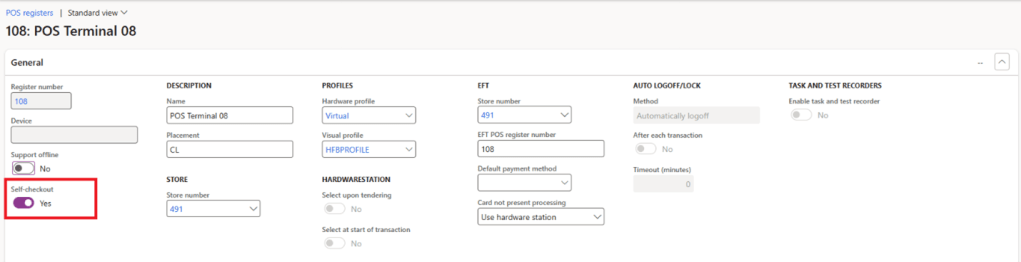
When the Self-Checkout option is set to “Yes,” the following changes occur in POS for consumer operations:
- The header and side navigation bars are hidden.
- Navigation to payment methods from totals is disabled.
(Source: Microsoft)
3. POS Operations:
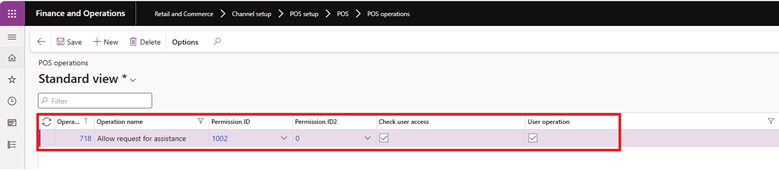
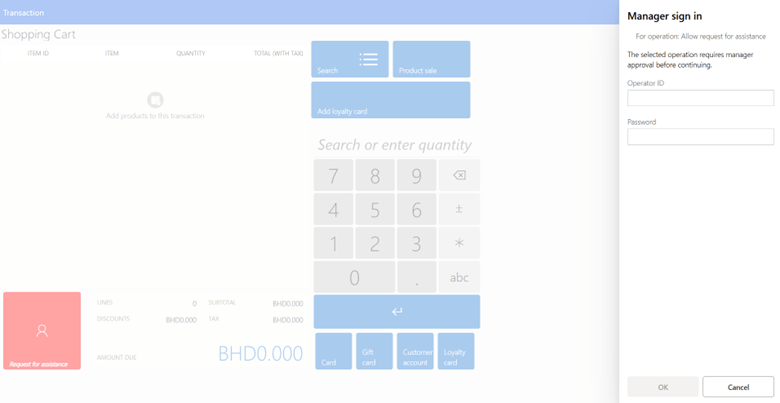
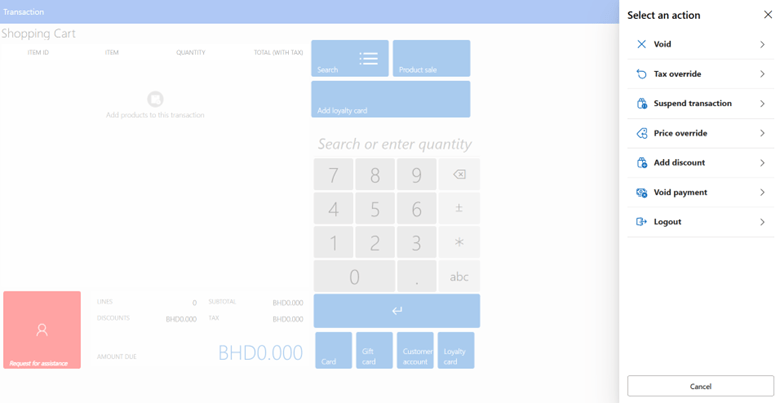
A new operation, “Allow Request for Assistance,” enables customers to request help during their transaction.
A manager or store associate must sign in or swipe their card to perform the following operations:
- Void:
- Void transaction: Void the entire transaction.
- Void item: Select and void a specific item (one at a time).
- Tax Override:
- Override line tax: Apply an exempt code and remove tax for a line.
- Override transaction: Void the tax for the whole transaction.
- Suspend Transaction: Suspend the transaction on SCO and resume it at a regular cashier register.
- Price Override: Override the price of an item by selecting it.
- Add Discount:
- Discount %: Apply a discount percentage.
- Discount amount: Apply a specific discount amount to the item.
- Void Payment: Void a partial payment.
- Logout: Allow the store associate to sign out.
- Cancel: Cancel the “Request for Assistance” operation.
Note: In the POS Operations screen, manually configure the “Allow Request for Assistance” operation and assign it manager privileges (Permission ID: 1002).
4. Permission Groups:
Create a new permission group and assign it to users with limited access, allowing them only to perform basic consumer operations, such as scanning and paying.
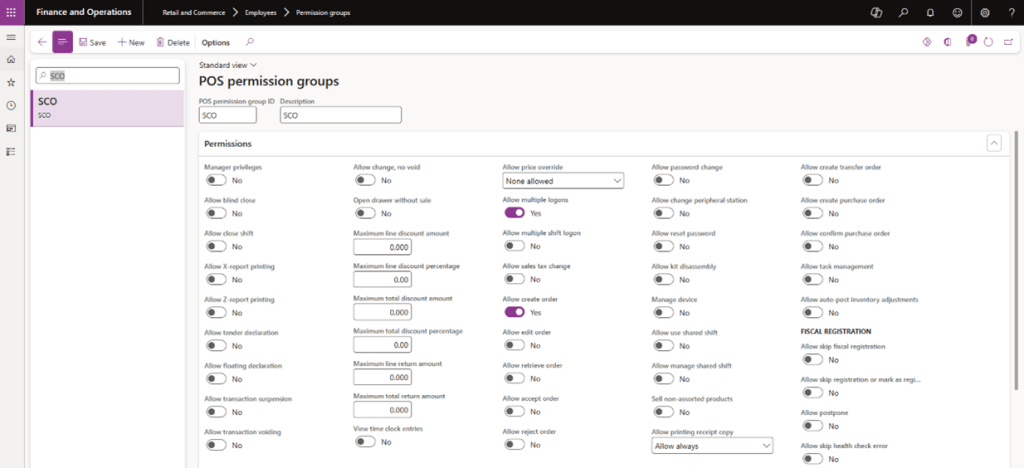
Shifts must be shared and managed solely by a store staff member. This ensures that staff can log in, start the shift, handle tender requirements, and close the shift without granting access to the self-checkout user.
Note: If “Manage Device” is set to “NO,” the header and side navigation bars will remain hidden on the self-checkout register.
5. SCO Screen Layout:
Microsoft recommends the following operations for a generic self-checkout user with limited POS access:
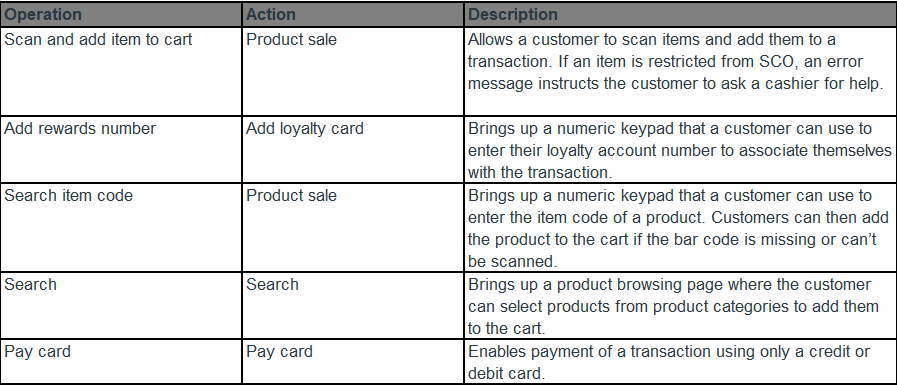
(Source: Microsoft)
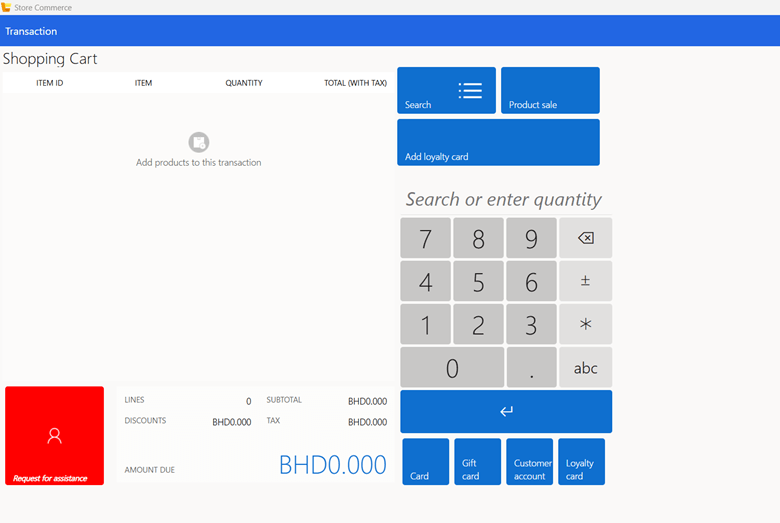
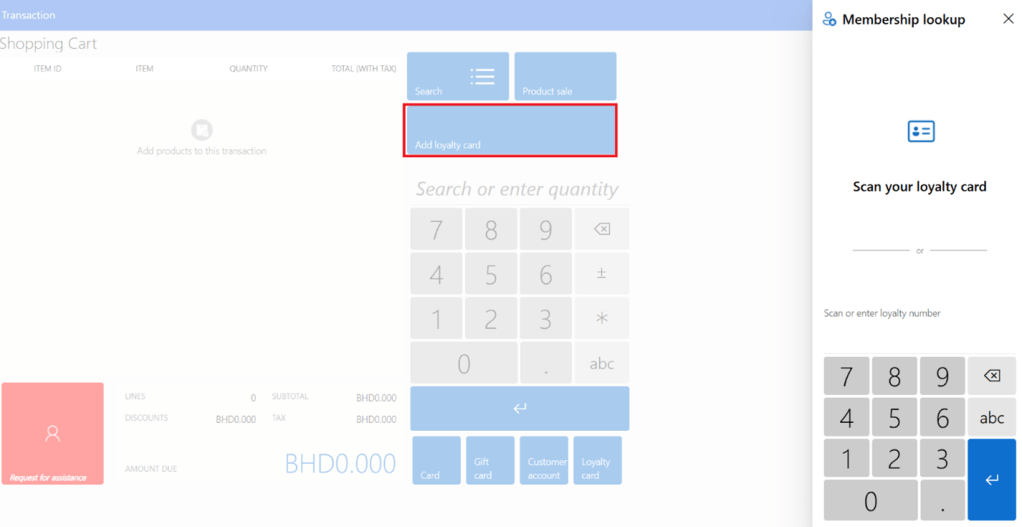
Customers or staff can search by item code using the “Product Sale” option, which brings up a keypad to add the item to the basket. They can also scan or enter a loyalty card through the “Add Loyalty Card” option.

The “Allow Request for Assistance” operation triggers a manager sign-in, and assistance options are displayed based on the staff member’s POS access and assigned permission group.
That concludes this overview of a potentially useful feature in Microsoft Dynamics 365 Self-Checkout.
Thank you for reading, and feel free to share!

 DynamicsSparks
Leave a comment